
An agent is a configured pipeline: a group of source channels, a processing mode, and the rules or instructions that decide what gets passed on to your Backstage. Krabli can run multiple agents in parallel — each one can watch different sources, use a different mode, and serve a different editorial purpose.
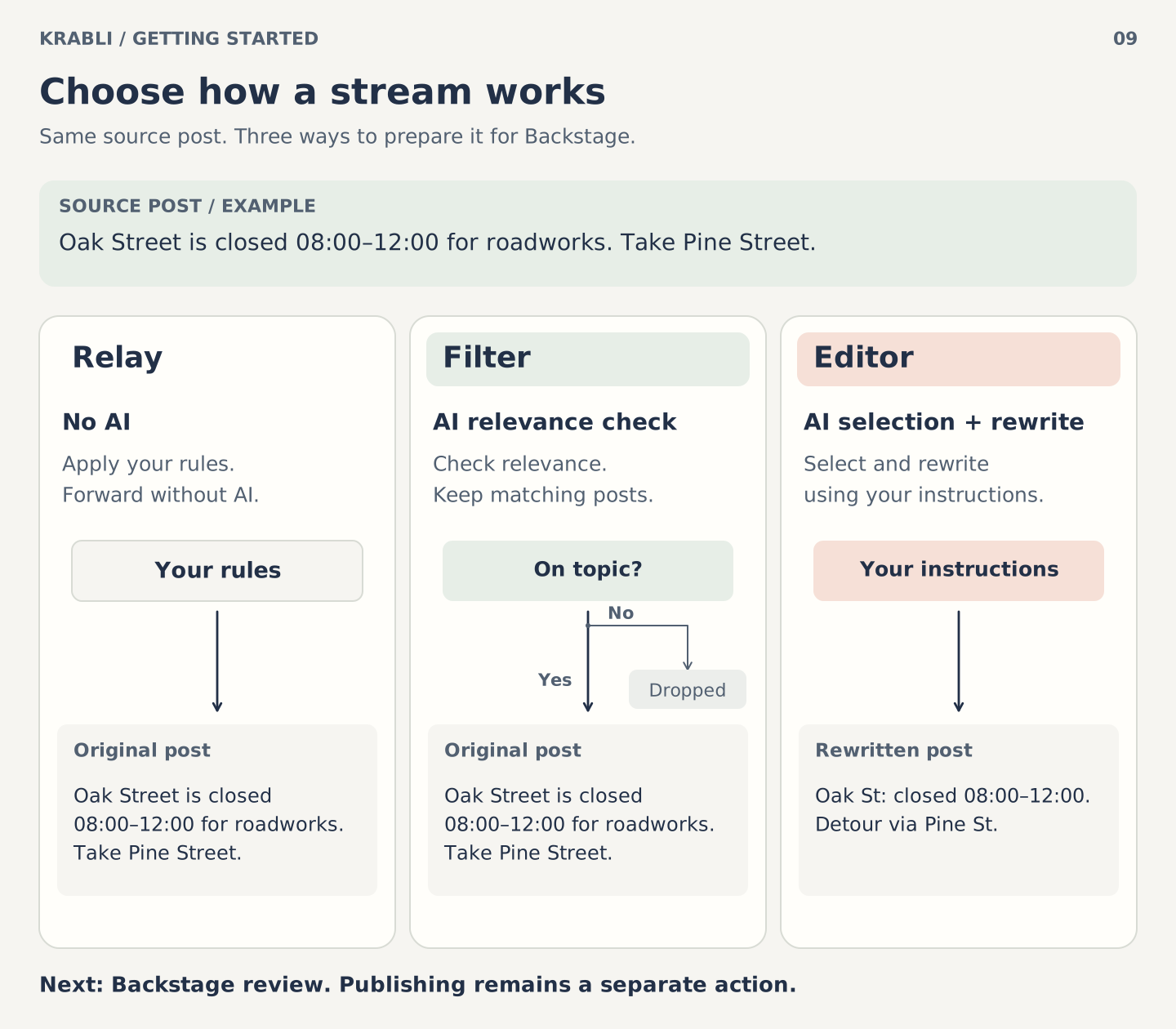
Diagram description
The same fictional road-closure notice illustrates three stream modes. Relay applies your rules without AI and forwards the post. Filter uses AI to check relevance: Yes keeps the original post for review; No drops it. Editor uses AI to select and rewrite according to your instructions. Retained posts continue to Backstage for review; the mode does not itself represent a Publish action.
Your workspace language
At the top of the Agents page you'll find a Language card. This is the one language setting for your entire workspace — it controls:
- The language your agents write posts in (when using Editor mode)
- The source language that Umbrella channels translate from
You set it once. All agents share it. If you change it later, Krabli updates all your agents' contracts to the new language.
You can't set a language for individual agents. If you need content in two different languages, use Umbrella channels — they auto-translate your main output into additional languages.
A language that one of your Umbrella channels already uses cannot be chosen as the workspace language (because that would mean translating from and to the same language). Remove the conflicting Umbrella channel first.
The three modes
Relay — no AI, rule-based
Relay mode reposts everything that passes your rules. You define the rules; no AI is involved. It's fast, costs nothing beyond Krabli's subscription, and has no dependency on an AI key.
Rules you can set:
- Keyword filters — only pass posts containing (or not containing) specific words
- Media filters — only pass posts with photos, videos, or no media
- Source-level rules — treat different sources differently within one agent
Best for: High-volume sources where you have precise, predictable criteria. Breaking news relays, sport score feeds, official announcement channels.
Filter — AI relevance gate
Filter mode uses AI to read each post and ask a yes/no question you define. Posts that pass go to Backstage; posts that fail go to the Dropped channel.
When setting up a Filter agent, you write a gate question, such as:
- "Is this post about public transport in Tel Aviv?"
- "Does this post announce a product launch by a major tech company?"
- "Is this relevant to small business owners in Germany?"
The AI answers yes or no. You don't get rewrites — just filtering. This makes Filter mode significantly cheaper than Editor mode.
Requires an OpenRouter AI key.
Best for: Sources that have relevant and irrelevant posts mixed together, where you need a smart relevance filter but are happy to publish posts as-is.
Editor — full AI with instructions
Editor mode uses AI to read, select, and rewrite posts according to instructions you write. Each post that passes is rewritten in your voice and style before arriving in Backstage.
When setting up an Editor agent, you write an editorial charter — a set of instructions that tell the AI what topics to cover, what style to write in, what to include and exclude, and any specific formatting requirements.
Example excerpt from an editorial charter:
"Cover only posts about urban cycling infrastructure in European cities. Write in a neutral, factual tone. Translate to English if the original is in another language. Keep posts under 200 words. Include the city and country in the first sentence."
Requires an OpenRouter AI key.
Best for: Curated channels where quality and voice matter. Editorial digests, translated feeds, topic-focused newsletters.
Comparing modes
| Relay | Filter | Editor | |
|---|---|---|---|
| AI required | No | Yes | Yes |
| Post rewriting | No | No | Yes |
| Cost | None | Low | Higher |
| Setup effort | Low | Medium | Higher |
| Output quality | Raw | Filtered | Curated |
| Best for | High volume, precise rules | Mixed sources, smart gate | Curated voice |
Creating an agent
- On the Agents page, tap New agent.
- Name it — something descriptive ("Tech news daily", "City transport relay").
- Choose sources — select which of your followed channels feed this agent.
- Choose a mode — Relay, Filter, or Editor.
- Write rules or instructions — keywords and media filters for Relay; a gate question for Filter; an editorial charter for Editor.
- Tap Save.
The agent is saved in paused state. Run a dry run before going live.
The dry run
Before activating an agent, tap Test on recent posts from the agent's page. Krabli fetches the most recent posts from your source channels and runs them through your agent's mode and rules.
You'll see:
- Which posts would pass to Backstage
- Which would be dropped, and why
- The rewritten version (for Editor mode)
This uses your AI key (for Filter and Editor) but writes nothing — no posts go to Backstage, nothing is published. Adjust your question or charter and run again until you're satisfied.
What the dry run doesn't simulate
The dry run doesn't enforce your daily post limit, doesn't deduplicate repeated post text, and doesn't preserve some rich formatting. These all work normally when the agent is live — they're just not part of the test.
Going live and pausing
On the agent's page, tap Go live to start it. Posts will begin arriving in Backstage as they appear in your source channels.
To pause an agent, tap Pause. No new posts are delivered while paused. Your existing Backstage proposals stay there — they don't disappear.
Editing an agent
Open the agent and tap Edit. Changes to rules, sources, or instructions take effect immediately for new posts. Past proposals in Backstage are not affected.
Changing the mode of an agent (e.g. from Filter to Editor) is possible through the contract editor. The agent must be paused first.
The contract editor
Each agent's settings are stored as a versioned YAML contract. For most users, the standard form is enough. If you need fine-grained control, tap Advanced to open the contract editor.
The contract editor gives you:
- Settings form — all contract settings in a grouped, labeled form
- YAML view — the raw contract as text, for precise edits
- History — a list of every saved version with a diff view
- Rollback — restore any previous version (Krabli explains exactly what will change before you confirm)
Every save creates a new version — nothing is overwritten. If a change makes things worse, you can always roll back.
Settings you can change: sources, rules, gate question, editorial instructions, post formatting, timing and sensitivity thresholds, automatic drop rules, media handling.
Settings that are locked: mode (Relay/Filter/Editor), model and provider configuration, daily token budget, and certain system settings. These can only be changed by Krabli's team.
Deleting an agent
Open the agent → tap Delete. Deleting an agent does not affect its source channels (they stay followed) or your channel setup (Backstage, Main, Dropped stay as they are). Proposals already in Backstage from this agent stay there.
Deletion is permanent and cannot be undone.