
Krabli is an AI editorial assistant for Telegram channel owners. It watches public source channels, selects the posts that matter to your audience, and delivers them to a private staging area — your Backstage channel — where you review and publish them with a tap.
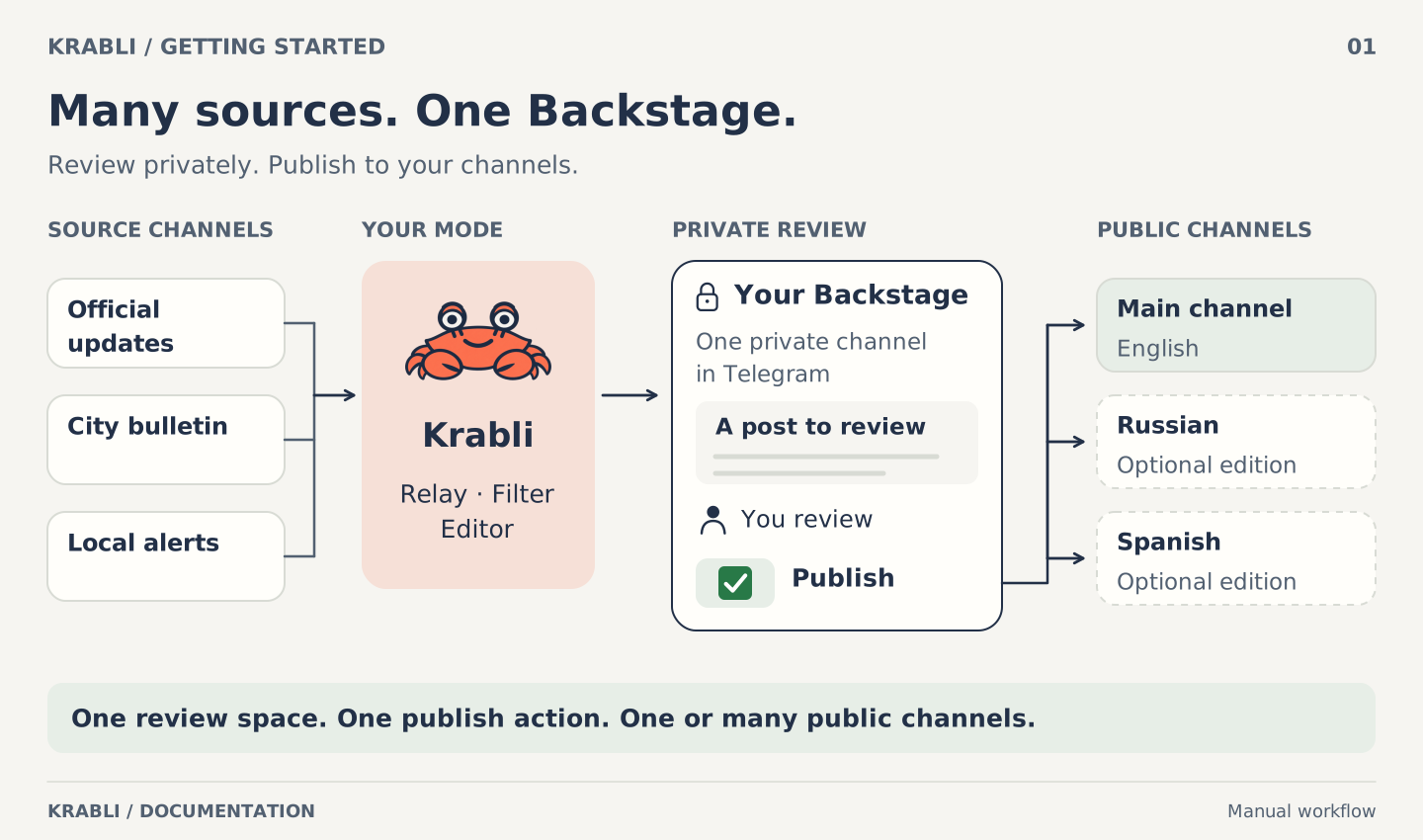
Diagram description
Source channels feed Krabli using Relay, Filter, or Editor mode. Posts enter one private Telegram Backstage for your review. Press the green checkmark to publish to your main public channel and any additional language editions. This diagram shows manual publication.
What you need before you start
- A Telegram account (your own, or a dedicated one — see the note below)
- A Telegram channel you own that you want to publish to (your Main channel)
- An invite code for Krabli (the platform is in private access)
- An OpenRouter account with a small credit balance, if you want AI filtering or rewriting (not required for basic relay)
Step 1 — Sign in
Open the Krabli web app and tap Sign in with Telegram. Telegram will confirm your identity without sharing your password with Krabli. This only links your Telegram identity; it does not give Krabli access to your account or messages.
Step 2 — Connect a bot
Krabli needs a Telegram bot to post proposals to your Backstage channel. You have two paths.
Path A — Paste a BotFather token
- Open Telegram and start a conversation with @BotFather.
- Create a new bot and copy its token.
(Not sure how? See Telegram's official bot guide.) - Paste the token on the Connections page in the Krabli app.
How Krabli uses this
The token lets Krabli's server post and edit messages in your Backstage channel on behalf of your bot.
Risk: A stolen token lets anyone post as your bot.
Protection: Your token is encrypted the moment you submit it and is never shown again — not even to Krabli's team. Only the last four characters are displayed so you can identify which bot is connected.
Your control: You can replace or remove the token at any time on the Connections page, or revoke the token directly in BotFather.
Path B — "Make a bot for me"
If you don't want to use BotFather, tap Make a bot for me on the Connections page. Krabli's manager bot will open a Telegram consent screen. Approve it, and Telegram creates a bot linked to your Krabli workspace.
How Krabli uses this
Krabli's manager bot creates a bot token on your behalf through Telegram's official API — the same way any Telegram bot manager works.
Risk: Until you delete this bot in BotFather, Krabli can issue a replacement token for it. This is how managed bots work.
Protection: Telegram shows its own authorization screen before anything is created. You can delete the bot from BotFather at any time, which immediately invalidates the token.
Your control: You can switch to a self-managed bot (Path A) at any time on the Connections page.
Step 3 — Add an AI key (optional, but recommended)
Krabli's Filter and Editor modes use AI to decide which posts to pass on to you and how to rewrite them. This AI is provided by OpenRouter and billed to your own account there — Krabli does not charge you for AI separately.
If you only want to use Relay mode (no AI, rule-based filtering only), skip this step.
- Go to OpenRouter and create an API key. Set a spending limit you're comfortable with.
(See OpenRouter's documentation for setup details.) - Paste the key on the Connections page.
How Krabli uses this
Krabli sends posts to AI models via your OpenRouter key. AI calls are billed to your OpenRouter account at the model's published rates.
Risk: A stolen key can spend your OpenRouter credits.
Protection: Your key is encrypted immediately and stored in Krabli's secure vault. It is never shown again or readable by anyone, including Krabli's team.
Your control: Set a spending cap in your OpenRouter dashboard. You can replace or remove the key on the Connections page at any time.
Step 4 — Link your Telegram account (optional)
This choice is about ownership. Without a linked account, Krabli uses its own managed Telegram accounts to read your sources and operate your Backstage — accounts you don't own or control. When you link your own account, your account does that work: channels it creates belong to you in Telegram, and you can see and revoke Krabli's session from your own Telegram app at any time.
Linking also unlocks automatic channel setup (Destinations → "Set it up for me") and umbrella channels for automatic translation. See Connections → Who reads your source channels for the full comparison.
We recommend creating a dedicated Telegram account for Krabli rather than linking your personal one. Krabli only uses the linked account to manage channels and, if you choose, to read sources — it never touches your personal messages, contacts, or private chats. A dedicated account keeps everything cleanly separated.
A second Telegram account costs nothing and takes two minutes to create on a spare phone number.
On the Connections page, tap Link Telegram account and follow the authorization steps.
How Krabli uses this
Krabli stores a Telegram session for your linked account — similar to logging in from a new device. It uses this session to create and manage channels on your behalf, and optionally to join and read source channels if you switch to own-reader mode.
Risk: The linked session gives Krabli access equivalent to adding a new device to your Telegram account. Krabli uses it only to manage channels (and optionally read sources) — never to read your personal messages or contact list.
Protection: Your session is encrypted and stored in Krabli's secure vault.
Your control: You can unlink your account at any time on the Connections page. Unlinking immediately stops Krabli from using the session.
Step 5 — Set up your Backstage channel
Your Backstage channel is a private Telegram channel where Krabli delivers post proposals for your review. It's only for you (and anyone else on your team).
Option A — "Set it up for me" (requires a linked Telegram account)
On the Destinations page, tap Set it up for me next to Backstage. Krabli will:
- Create a private channel in your Telegram account
- Add your bot as an administrator with posting rights
- Add Krabli's account as an administrator so it can notice your edits to proposals
That's it — the channel is ready.
Option B — Manual setup
- Create a new private Telegram channel (any name you like — "My Editorial Desk" works well).
- Open the channel settings and add your bot as an administrator with at least Post Messages and Edit Messages of Others rights.
- Add Krabli's account as an administrator with the same rights. The Krabli app shows you the exact account name to add on the Destinations page.
- Copy the channel's invite link and paste it into the Backstage field on the Destinations page.
- Tap Check to confirm everything is configured correctly.
Why Krabli's account needs to be an admin in your Backstage
When you edit a proposal message in Backstage (to improve the wording before publishing), Krabli's account notices the edit and uses your revised version when publishing. Without it, your edits are silently ignored.
Risk: One more admin account in a private channel.
Protection: Krabli's account only reads messages in channels you add it to. It never joins your Main channel or any other channel.
Step 6 — Set up your Main and Dropped channels (optional)
Your Main channel is the public channel where Krabli publishes posts you approve. Your Dropped channel is where rejected posts land, so you can rescue them later if you change your mind.
Neither is strictly required to get started — without a Main channel, Krabli still delivers proposals to Backstage and you can set up Main later. But you'll want it before you go live.
Set up each channel the same way as Backstage: either let Krabli create it for you (Destinations → "Make it for me"), or create it manually and add your bot as an admin.
For the Main channel, the bot only needs Post Messages rights (it doesn't need to edit or delete). For the Dropped channel, same.
Step 7 — Follow source channels
Go to the Sources page. Search for any public Telegram channel by its username (e.g. @example_news) and tap Follow.
Krabli joins channels gradually — at most 4 per hour — to stay within Telegram's limits. A newly added channel might take a few hours before posts start arriving. You'll see its status on the Sources page: Reading, Waiting to join, or a reason it can't be read.
You can follow as many channels as you like. Krabli reads them all and filters what matters.
Step 8 — Choose your workspace language
Open the Agents page. At the top you'll see a Language card. Choose the language all your agents will write in — this is the language your published posts will appear in.
All agents in your workspace share this one language. Krabli uses it when generating post text and when setting up umbrella channels for automatic translation.
Step 9 — Create your first agent
An agent is a configured pipeline: a set of sources, a mode, and optionally rules or AI instructions.
On the Agents page, tap New agent.
- Name it — something that helps you remember what it does ("City news", "Tech daily")
- Pick sources — choose which of your followed channels feed this agent
- Choose a mode:
- Relay — no AI. Posts pass through based on keyword or media rules you define. Fast and free.
- Filter — AI reads each post and asks "is this relevant?" Posts that pass go to Backstage; others go to Dropped. Requires an OpenRouter key.
- Editor — AI reads, selects, and rewrites posts based on your instructions. Best output quality. Requires an OpenRouter key.
- Write rules or instructions (depending on mode)
- Tap Save
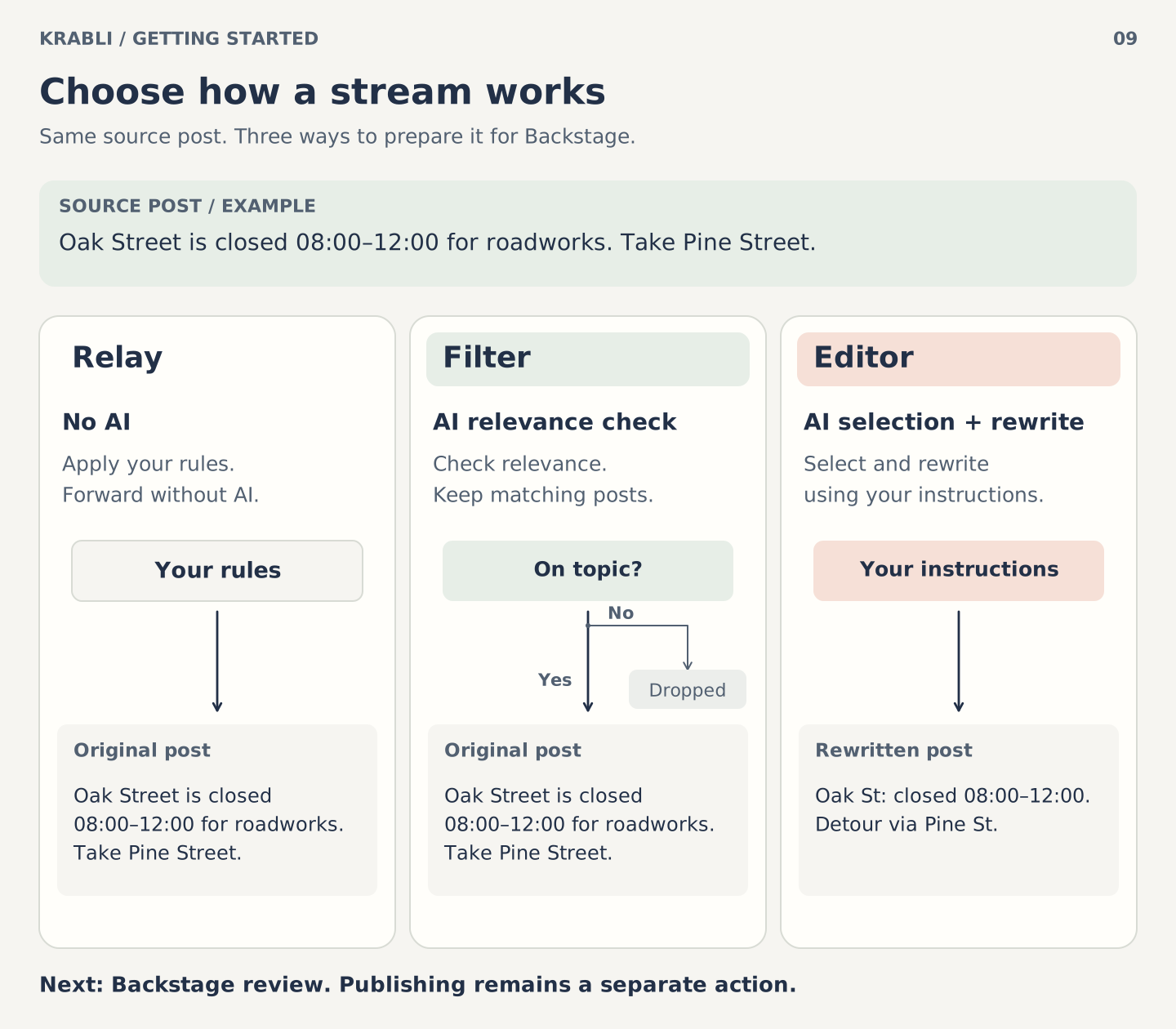
Diagram description
The same fictional road-closure notice illustrates three stream modes. Relay applies your rules without AI and forwards the post. Filter uses AI to check relevance: Yes keeps the original post for review; No drops it. Editor uses AI to select and rewrite according to your instructions. Retained posts continue to Backstage for review; the mode does not itself represent a Publish action.
The agent is saved in paused state. You can test it before going live.
Step 10 — Test before going live (recommended)
Before activating your agent, run a dry run to see how it handles recent posts:
- Open your agent and tap Test on recent posts
- Krabli fetches the latest posts from your sources and runs them through your agent
- You'll see which posts would be passed to Backstage and which would be dropped
- Adjust your rules or instructions if the results aren't what you expected
The dry run uses your AI key but writes nothing — no posts are delivered to Backstage, and nothing is published.
Step 11 — Go live
When you're happy with the dry run results, tap Go live on your agent. Posts from your source channels will start arriving in your Backstage channel as Telegram messages.
Step 12 — Your first post in Backstage
Open Telegram and find your Backstage channel. A proposal looks like this:
- The post text (rewritten by AI if you're using Editor mode)
- A source label showing where it came from
- Three inline buttons: Publish, ❌, ↩
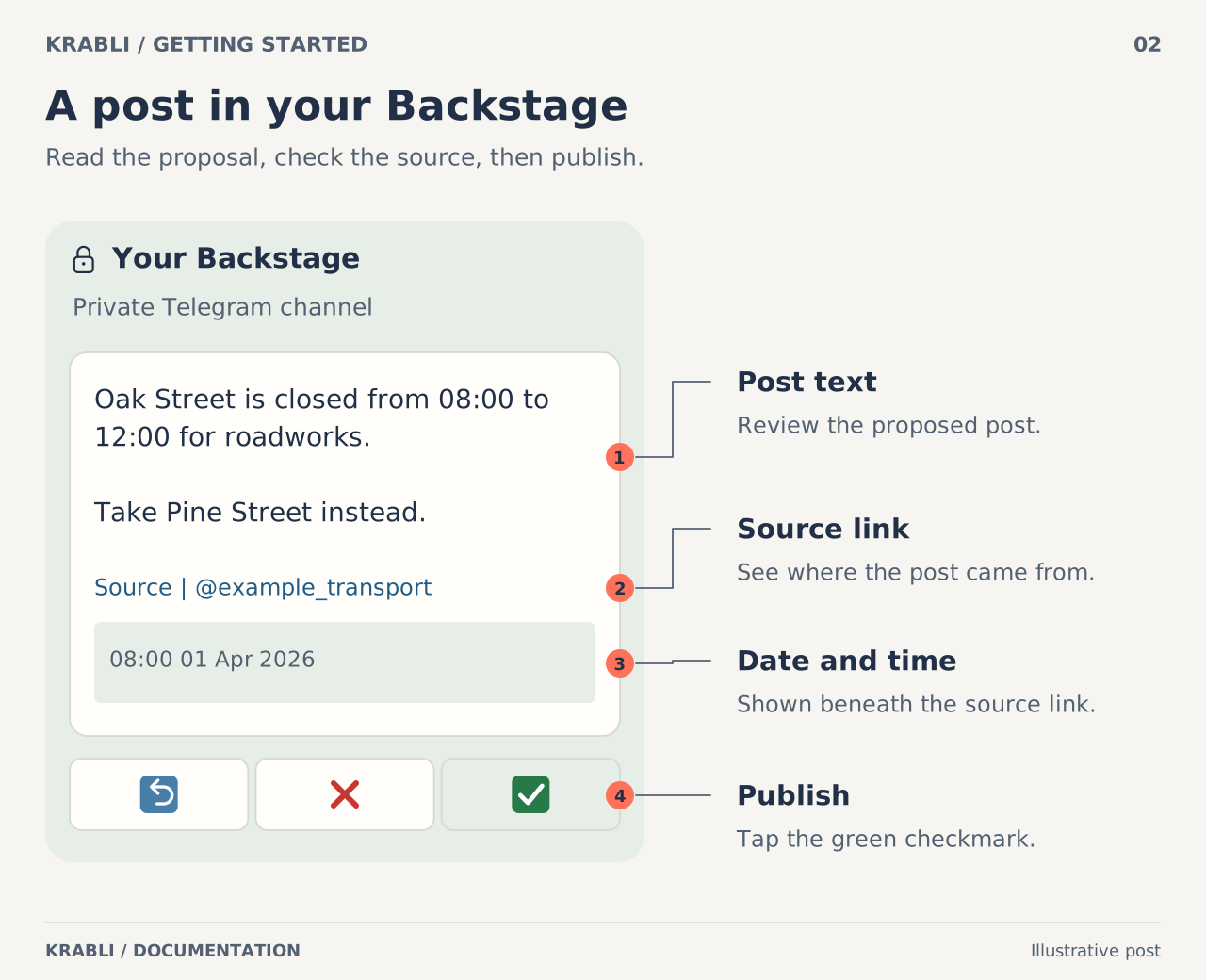
Diagram description
A schematic text-only Backstage proposal: post text, linked source attribution, and a date-and-time footer. The bottom row contains a return icon, a red cross, and a green checkmark. The green checkmark publishes to configured public destinations. The return control is shown without a behavioral claim.
- Publish — sends the post to your Main channel immediately
- ❌ — skips this post (it moves to your Dropped channel, where you can rescue it later)
- ↩ — sends it back (marks the proposal for a second look; useful when you want to edit it first)
That's it. Krabli handles the rest.
What's next
- Connections — detailed guide to managing your bot, AI key, and linked account
- Agents and Modes — how to write good Filter questions and Editor instructions
- The Backstage — everything you can do in Telegram while reviewing proposals
- Umbrella Channels — publish in multiple languages automatically
- FAQ — quick answers to common questions