
Your Backstage channel is where editorial decisions happen. It's a private Telegram channel — visible only to you and anyone you've added — where Krabli delivers post proposals as bot messages. You review each one and tap a button to publish, skip, or send it back for another look.
Everything here happens in Telegram, on whatever device you use. No need to open the Krabli web app.
Anatomy of a backstage message
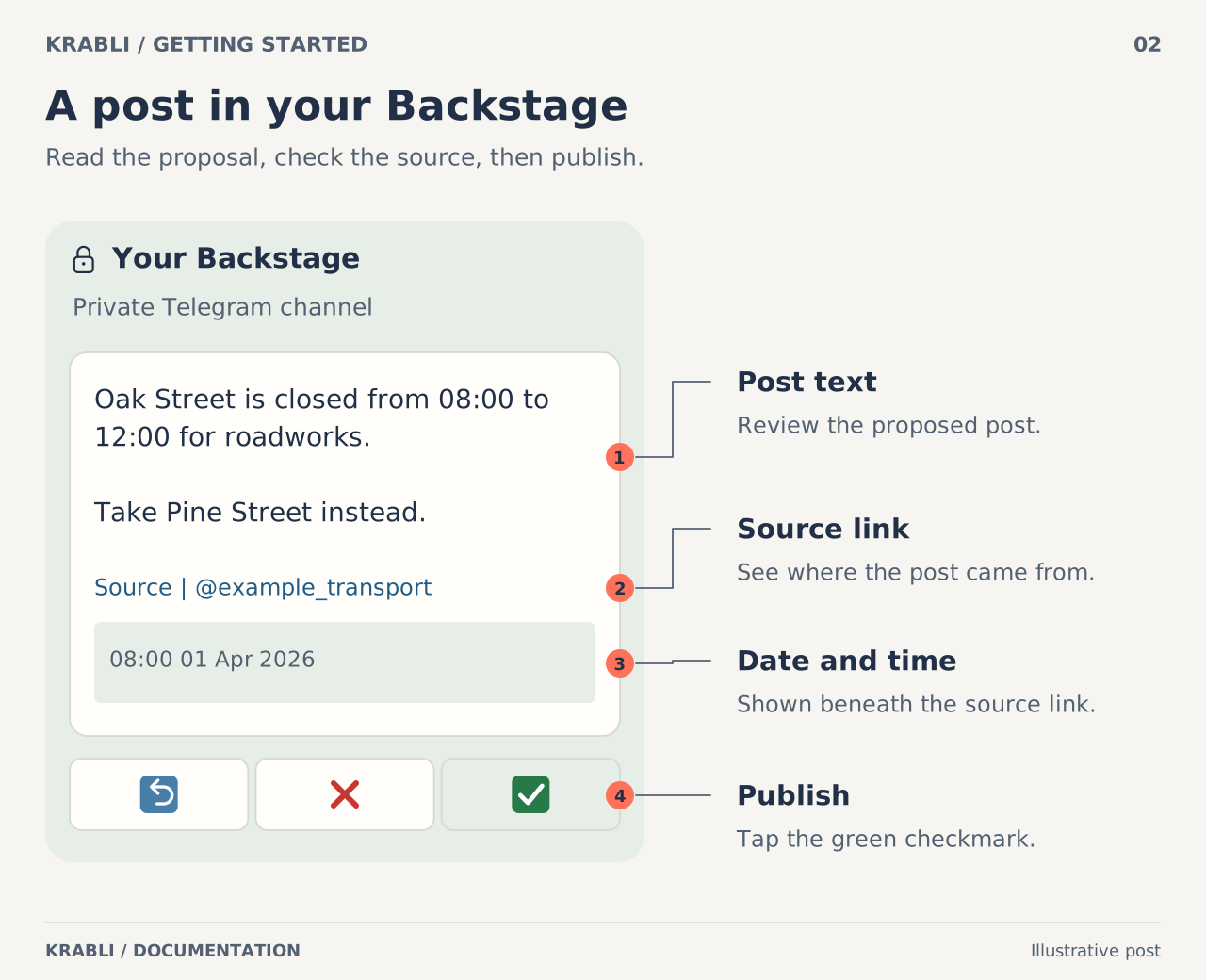
Diagram description
A schematic text-only Backstage proposal: post text, linked source attribution, and a date-and-time footer. The bottom row contains a return icon, a red cross, and a green checkmark. The green checkmark publishes to configured public destinations. The return control is shown without a behavioral claim.
Each proposal looks like this:
- Post content — the text (and media, if any) that Krabli selected. In Editor mode, this is the AI's rewritten version. In Relay and Filter modes, it's the original text.
- Source line — a small label at the bottom of the text showing which source channel this came from.
- Inline buttons — three buttons below the message:
- Publish — approve and send to your Main channel
- ❌ — skip this post (moves to Dropped channel)
- ↩ — send back for another look
Publish
Tap Publish to send the post to your Main channel. Krabli publishes it immediately, using the current text of the proposal (including any edits you've made — see below).
Once published, the proposal message in Backstage updates to show that it was published and when. The inline buttons disappear.
If you have Umbrella channels set up, translated versions are sent to each umbrella channel at the same time.
Skip (❌)
Tap ❌ to skip a post. Krabli marks it as skipped and moves a copy to your Dropped channel, where it stays for a while in case you change your mind.
The proposal message in Backstage updates to show that it was skipped.
Send back (↩)
Tap ↩ to send a post back. This is useful when you want to edit the proposal before deciding — it marks the message and keeps it in focus at the top of your review queue.
Editing a proposal before publishing
You can edit the text of a proposal directly in Telegram before tapping Publish. Just edit the message in Backstage the normal Telegram way (long-press or right-click → Edit).
For Krabli to pick up your edits, Krabli's account must be an administrator in your Backstage channel (this is set up on the Destinations page). When it is, Krabli notices your edits and publishes your revised version instead of the original AI output.
If Krabli's account is not in your Backstage: Your edits are visible to you but Krabli publishes the original text. Check the Destinations page if you're not sure whether Krabli's account is set up correctly.
When a source edits their post
If a source channel edits a post after Krabli has already delivered a proposal for it, Krabli updates the proposal in your Backstage to reflect the edit. The updated text arrives silently — you may want to re-read a proposal before publishing if you've been waiting a while.
The Dropped channel
Your Dropped channel is a separate Telegram channel where skipped posts land. Think of it as a recycling bin — posts are there in case you change your mind.
From the Dropped channel, you can rescue a post back to Backstage by tapping the button on the dropped message. The post reappears in Backstage as a fresh proposal with the same Publish / Skip / Send back buttons.
The Dropped channel is optional. If you haven't set one up, skipped posts are simply discarded.
Video posts and the Transcribe button
If a source publishes a video and you're interested in it but can't play it right now, Krabli can burn Russian subtitles into the video before you publish.
When a proposal contains a video, a 📝 Transcribe button appears above the main three buttons.
See Video Transcription for the full guide.
Working across devices
Your Backstage is a standard Telegram channel. It works identically on:
- Telegram for Android
- Telegram for iOS
- Telegram Web (web.telegram.org)
- Telegram Desktop (Windows, macOS, Linux)
The inline buttons (Publish, Skip, Send back) render the same on all platforms. There's no app to install — if you have Telegram, you have the Backstage.